Rodin Handbook

This work is sponsored by the Deploy Project

This work is licensed under a Creative Commons Attribution 3.0 Unported License
 |
 |
 |
User Manual for Rodin v.2.3 |  |
 |
 |

3.1.2 The Event-B Perspective
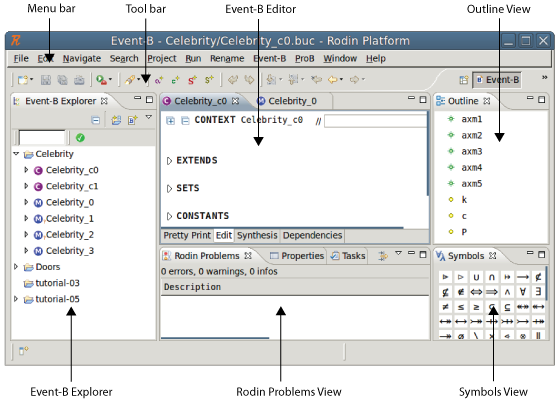
Figure 3.3 shows an overview of the opening window of the Event-B Perspective. The following subsections identify the different Rodin GUI elements (i.e. Views) which are visible and explain their functions.
3.1.2.1 Menu bar
The menu bar provides file and edit operations and other useful Event-B specific operations. We will briefly describe the most important menu items here.
3.1.2.1.1 Rename menu
When opening a machine or context file, the following actions for automatically renaming the Event-B model elements are available for the user:
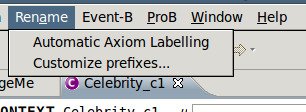
One action is available when editing context files (see Figure 3.4).
Automatic Axiom Labelling: this action will rename the axioms alphanumerically renaming according to their order of appearance.
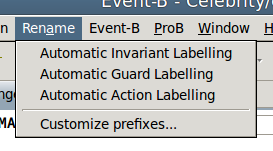
Three actions are available for machine files (see Figure 3.5).
Automatic Invariant Labelling: this action will rename the invariants alphanumerically according to their order of appearance.
Automatic Guard Labelling: this action will rename the guards alphanumerically according to their order of appearance,
Automatic Action Labelling: this action will rename the actions alphanumerically according to their order of appearance.
3.1.2.1.2 Event-B menu
When opening a machine or context file, some wizards for creating Event-B model elements are available for the user. The different wizards are described in Section 3.1.4.
3.1.2.2 Tool bar
The tool bar provides short cuts for familiar commands like save, print, undo and redo. The tool bar also provides short cuts to the wizards for creating elements like axioms, constants, enumerated sets, etc., which are described in Section 3.1.4.
3.1.2.3 Editor View
The editor view contains the active Event-B editor which is described in Section 3.1.4.
3.1.2.4 Outline View
The outline view displays the outline of the active Event-B editor and lists elements like axioms, variables, etc..
3.1.2.5 Rodin Problems View
When the Static Checker discovers an error in a project, a
![\includegraphics[height=2ex]{img/icons/rodin/error_ovr.png}](images/img-0387.png) marker is added to this project and to the faulty component in the Event-B Explorer. The error itself is shown in the Rodin Problems view (i.e. syntax errors) of the active Event-B editor.
marker is added to this project and to the faulty component in the Event-B Explorer. The error itself is shown in the Rodin Problems view (i.e. syntax errors) of the active Event-B editor.
By double-clicking on the error statement, you are transferred automatically into the place where the error has been detected so that you can correct it easily.
3.1.2.6 Symbols View
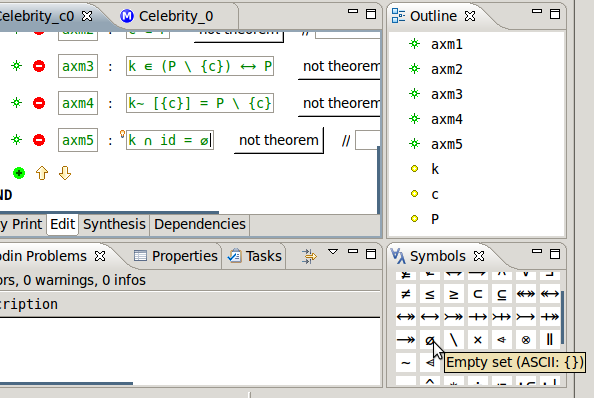
The symbols view is intended to give users a convenient way to type in mathematical symbols into the various model editors. If an editor is open and a text field is active (the cursor is blinking), then clicking a symbol inserts it at the current position as demonstrated in Figure 3.6.
The ASCII code corresponding to the symbol over which the mouse hovers is also displayed as a tooltip so that the user can also learn how to input symbols directly.
3.1.2.7 Event-B Explorer
Projects can be found in the RODIN platform in the Event-B Explorer. This is usually situated on the left hand side of the screen as shown in Figure 3.3. The Event-B Explorer contains a list of name of the current projects. Next to each project name is a small triangle. By pressing it, one can expand a project and see the machines and contexts that it contains.
The icons (
![\includegraphics[height=2ex]{img/icons/rodin/ctx_obj.png}](images/img-0389.png) or
or
![\includegraphics[height=2ex]{img/icons/rodin/mch_obj.png}](images/img-0390.png) ) next to the components help identify whether they are a context or machine respectively.
) next to the components help identify whether they are a context or machine respectively.
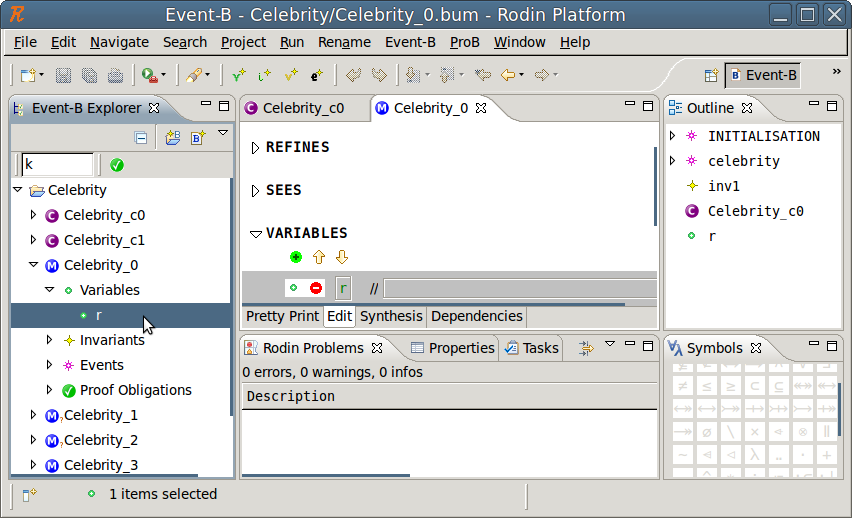
When expanding a machine or a context, you can explore its elements. Double clicking on a specific element (i.e. a variable) opens the Event-B editor and marks the position of the variable in the machine or context as shown in Figure 3.7. Furthermore, proof obligations are displayed when clicking on the small triangle next to the label Proof Obligations (for more information see Section 3.1.5).
|
|
|
|
|
|