Rodin Handbook

This work is sponsored by the Deploy Project

This work is licensed under a Creative Commons Attribution 3.0 Unported License
 |
 |
 |
User Manual for Rodin v.2.3 |  |
 |
 |

3.1.5 The Proving Perspective
When proof obligations (POs) (Section 3.2.6) are not discharged automatically, the user can attempt to discharge them interactively using the Proving Perspective. This page provides an overview of the Proving Perspective and its use. If the Proving Perspective is not visible as a tab on the top right-hand corner of the main interface, the user can switch to it via Window  Open Perspective.
The Proving Perspective consists of a number of views: the Proof Tree, the Goal, the Selected Hypotheses, the Proof Control, the Search Hypotheses, the Cache Hypotheses and the Proof Information. In the discussion that follows we look at each of these views individually. Figure 3.25 shows an overview of the Proving Perspective.
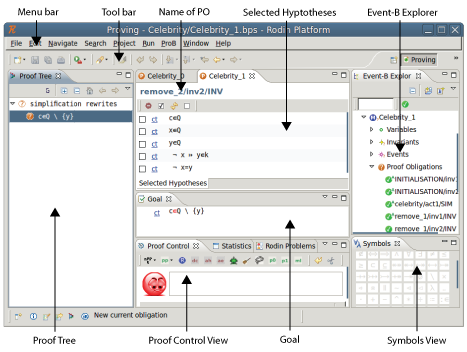
3.1.5.1 Loading a Proof
To work on an PO that has not yet been discharged, it is necessary to load the proof into the Proving Perspective. To do this, switch to the Proving Perspective. Select the project from the Event-B Explorer and select and expand the component (context or machine). Finally, select (double-click) the proof obligation of interest. A number of views will be updated with details of the corresponding proof.
Note that pressing the
![\includegraphics[height=2ex]{img/icons/rodin/discharged.png}](images/img-0039.png) button on the top left hand side of the Event-B Explorer will remove all discharged proof obligations (PO’s) from the view.
button on the top left hand side of the Event-B Explorer will remove all discharged proof obligations (PO’s) from the view.
3.1.5.2 The Proof Tree
The proof tree view provides a graphical representation of each individual proof step as seen in figure 3.26.
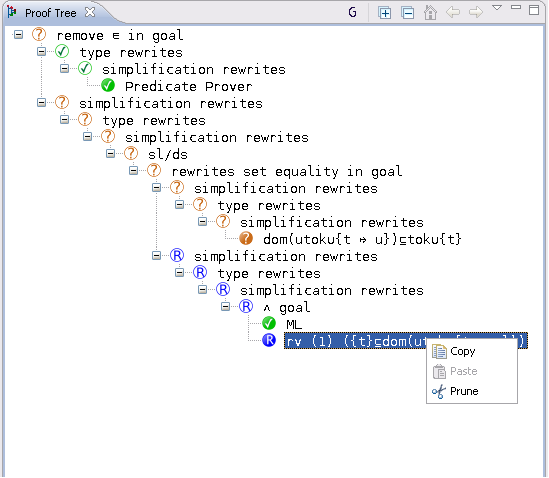
The tree is made up of sequents. A line of the tree is shifted to the right when the corresponding node is a direct descendant of the node of the previous line. Each sequent is labeled with a comment which indicates which rule has been applied or which prover discharged the proof. By selecting a sequent in the proof tree, the hypotheses of the sequent are loaded to the Selected Hypotheses window, and the goal of the sequent is loaded to the Goal view.
3.1.5.2.1 Decoration
The symbol to the left of the leaf indicates the state of the sequent:
- indicates that this sequent is discharged.
![\includegraphics[height=2ex]{img/icons/rodin/pending.png}](images/img-0040.png) indicates that this sequent is not discharged.
indicates that this sequent is not discharged. ![\includegraphics[height=2ex]{img/icons/rodin/reviewed.png}](images/img-0424.png) indicates that this sequent has been reviewed.
indicates that this sequent has been reviewed.
Internal nodes in the proof display the symbols in reverse colours. Note that a “reviewed" sequent is one that is not discharged yet by the prover. Instead, it has been “seen" by the user who decided to postpone the proof. Marking sequents as “reviewed" is very convenient since the provers will ignore these leaves and focus on specific areas of interest. This allows the proof to be discharged interactively in a gradual fashion. In order to discharge a “reviewed" sequent, select it and prune the tree at that node: the node will become “brown" again (undischarged), and you can now try to discharge it.
3.1.5.2.2 Navigation within the Proof Tree
There are three buttons on the top of the proof tree view:
![\includegraphics[height=2ex]{img/icons/rodin/showgoal.png}](images/img-0425.png) allows you to see the goal of corresponding to each. node,
allows you to see the goal of corresponding to each. node, ![\includegraphics[height=2ex]{img/icons/rodin/collapseall.png}](images/img-0426.png) allows you to fully expand the proof tree.
allows you to fully expand the proof tree. ![\includegraphics[height=2ex]{img/icons/rodin/expandall.png}](images/img-0427.png) allows you to fully collapse the tree; only the root stays visible.
allows you to fully collapse the tree; only the root stays visible.
3.1.5.2.3 Manipulating the Proof Tree
3.1.5.2.3.1 Hiding
The button next to each node in the proof tree allows you to expand or collapse the subtree starting at that node.
3.1.5.2.3.2 Pruning
The proof tree can be pruned at a selected node. This means that the subtree of the selected node is removed from the proof tree. The selected node becomes a leaf and displays the symbol
. The proof activity can then be resumed from this node. After selecting a node in the proof tree, pruning can be performed in two ways:
by right-clicking and then selecting Prune,
by clicking on the
![\includegraphics[height=2ex]{img/icons/rodin/pn_prover.png}](images/img-0309.png) button in the proof control view.
button in the proof control view.
Note that after pruning, the post-tactic is not applied to the new current sequent. The post-tactic should be applied manually, if required, by clicking on the post-tactic button in the Proof Control view. This is especially useful when you want to redo a proof from the beginning. The proof tree can be pruned at its root node and then the proof can proceed again with invocation of internal or external provers or with an interactive proof.
Before pruning a particular node, the node (and its subtree) can be copied to the clipboard. If the new proof strategy subsequently fails, the copied version can be pasted back into the pruned node (see the next section).
3.1.5.2.3.3 Copy/Paste
By selecting a node in the proof tree and then right-clicking with the mouse, you can copy the part of the proof tree starting at that sequent (including the node and its subtree). Pasting the node and subtree back in is done in a similar manner with a right mouse click on a proof node. This allows reuse of part of a proof tree in the same or even in another proof.
3.1.5.3 Goal and Selected Hypotheses
Each sequent in the proof tree have corresponding hypotheses and goals. A user will work with one selected sequent at a time by attempting various strategies in an effort to show that the goal is true. The Goal and Selected Hypotheses views provide information to the user about the currently selected sequent. Figure 3.27 shows an example.
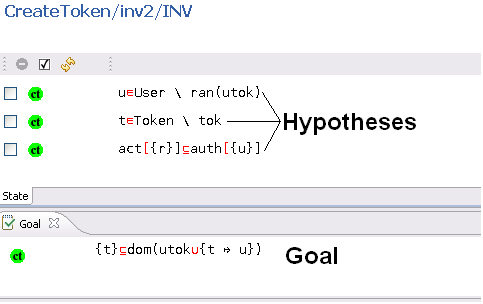
A hypothesis can be removed from the list of selected hypotheses by selecting the check the box situated next to it (you can click on several boxes at once) and then by clicking on the
![\includegraphics[height=2ex]{img/icons/rodin/remove.png}](images/img-0396.png) button at the top of the selected hypotheses window.
button at the top of the selected hypotheses window.
Note that the deselected hypotheses are not lost. You can find them again using the Search Hypotheses
![\includegraphics[height=2ex]{img/icons/rodin/sh_prover.png}](images/img-0313.png) button in the Proof Control view. Other buttons are used as follows:
button in the Proof Control view. Other buttons are used as follows:
![\includegraphics[height=2ex]{img/icons/rodin/select_all_prover.png}](images/img-0429.png) - Select all hypotheses.
- Select all hypotheses. ![\includegraphics[height=2ex]{img/icons/rodin/inv_prover.png}](images/img-0430.png) - Invert the selection.
- Invert the selection. ![\includegraphics[height=2ex]{img/icons/rodin/falsify_prover.png}](images/img-0431.png) next to the goal - Proof by contradiction 1: The negation of the goal becomes a selected hypothesis and the goal becomes “
next to the goal - Proof by contradiction 1: The negation of the goal becomes a selected hypothesis and the goal becomes “ ".
". - next to a selected hypothesis - Proof by contradiction 2: The negation of the hypothesis becomes the goal and the negated goal becomes a selected hypothesis.
A user wishing to attempt an interactive proof has a number of proof rules available, and these may either rewrite a hypothesis/goal or infer something from it. In the Goal and the Selected Hypotheses views, various operators may appear in red coloured font. The red font indicates that some interactive proof rule(s) are applicable and may be applied as a step in the proof attempt. When the mouse hovers over such an operator, a number of applicable rules may be displayed; the user may choose to apply one of the rules by clicking on it. Figure 3.28 shows an example.
Other proof rules can be applied when green buttons appear in the Goal and Selected Hypotheses views. Examples are proof by contradiction
and conjunction introduction
![\includegraphics[height=2ex]{img/icons/rodin/conjI_prover.png}](images/img-0433.png) .
.
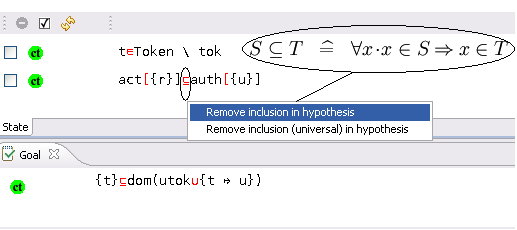
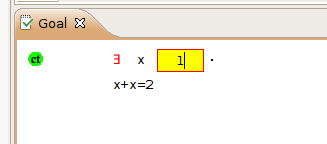
To instantiate a quantifier, the user enters the desired expression in the box behind the quantifier and clicks on the quantifier (the red  ) as demonstrated in figure 3.29.
3.1.5.4 The Proof Control View
The Proof Control view contains the buttons with which you can perform an interactive proof. An overview of this proof can be seen in Figure 3.30.
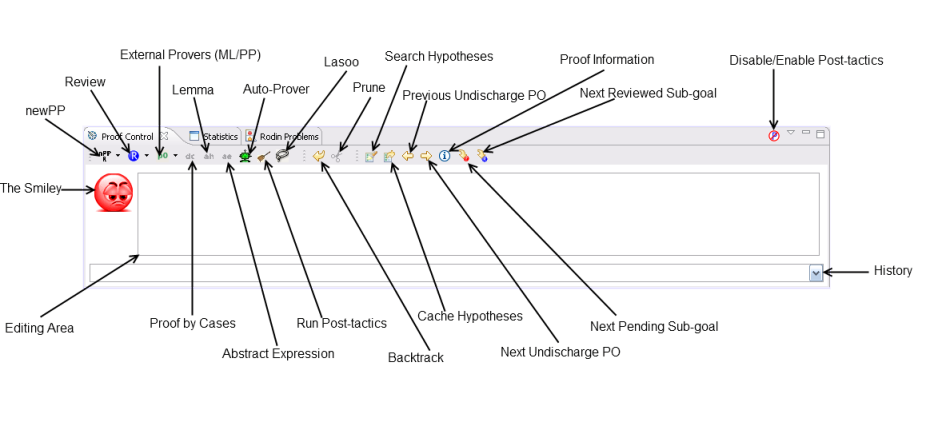
The following buttons are available in the Proof Control view:
![\includegraphics[height=2ex]{img/icons/rodin/nppr.png}](images/img-0437.png) invokes the new predicate prover. A drop-down list indicates alternative strategies.
invokes the new predicate prover. A drop-down list indicates alternative strategies. - indicates that a node has been reviewed. In an attempt by the user to carry out sequents in a certain order, they might decide to postpone the task of discharging some sequents until a later stage. To do this, the sequent can be marked as reviewed by choosing the correct node and clicking on this button. This indicates that by visually checking the sequent, the user is convinced that they can discharge it later, but they do not want to do it right now.
![\includegraphics[height=2ex]{img/icons/rodin/p0.png}](images/img-0438.png) external provers can be invoked from the drop-down list to test sequents using different forces.
external provers can be invoked from the drop-down list to test sequents using different forces. ![\includegraphics[height=2ex]{img/icons/rodin/dc_prover.png}](images/img-0352.png) begins a proof by cases. The proof is split into two branches. In the first branchf, the predicate supplied by the user is added to the Selected Hypotheses, and the user attempts to discharge this branch. In the second branch, the predicate supplied by the user is negated and added to the Selected Hypotheses. The user then attempts to discharge this branch.
begins a proof by cases. The proof is split into two branches. In the first branchf, the predicate supplied by the user is added to the Selected Hypotheses, and the user attempts to discharge this branch. In the second branch, the predicate supplied by the user is negated and added to the Selected Hypotheses. The user then attempts to discharge this branch. ![\includegraphics[height=2ex]{img/icons/rodin/ah_prover.png}](images/img-0308.png) adds a new hypothesis. The predicate in the editing area should be proved by the user. It is then added as a new selected hypothesis.
adds a new hypothesis. The predicate in the editing area should be proved by the user. It is then added as a new selected hypothesis. ![\includegraphics[height=2ex]{img/icons/rodin/ae_prover.png}](images/img-0439.png) adds an abstract expression. The expression in the editing area is given a fresh name.
adds an abstract expression. The expression in the editing area is given a fresh name. ![\includegraphics[height=2ex]{img/icons/rodin/auto_prover.png}](images/img-0341.png) invokes the auto-prover which attempts to discharge the goal. The auto-prover is applied automatically on all proof obligations after a the machine or context is saved. Using this button, you can invoke the auto-prover within an interactive proof.
invokes the auto-prover which attempts to discharge the goal. The auto-prover is applied automatically on all proof obligations after a the machine or context is saved. Using this button, you can invoke the auto-prover within an interactive proof. ![\includegraphics[height=2ex]{img/icons/rodin/broom_prover.png}](images/img-0440.png) executes the post-tactics.
executes the post-tactics. ![\includegraphics[height=2ex]{img/icons/rodin/lasoo_prover.png}](images/img-0317.png) loads the hidden hypotheses that contain identifiers in common with the goal and with the selected hypotheses into the Selected Hypotheses window
loads the hidden hypotheses that contain identifiers in common with the goal and with the selected hypotheses into the Selected Hypotheses window ![\includegraphics[height=2ex]{img/icons/rodin/bk_prover.png}](images/img-0441.png) backtracks from the current node (i.e., prunes its parent).
backtracks from the current node (i.e., prunes its parent). - prunes the proof tree from the node selected in the proof tree.
- finds hypotheses containing the character string in the editing area and displays them in the Search Hypothesis view.
![\includegraphics[height=2ex]{img/icons/rodin/ch_prover.png}](images/img-0442.png) displays the Cache Hypotheses view. This view displays all hypotheses that are related to the current goal.
displays the Cache Hypotheses view. This view displays all hypotheses that are related to the current goal. ![\includegraphics[height=2ex]{img/icons/rodin/prev_prover.png}](images/img-0443.png) loads the preceding undischarged proof obligation.
loads the preceding undischarged proof obligation. ![\includegraphics[height=2ex]{img/icons/rodin/next_prover.png}](images/img-0318.png) loads the next undischarged proof obligation,
loads the next undischarged proof obligation, ![\includegraphics[height=2ex]{img/icons/rodin/info_prover.png}](images/img-0444.png) displays information regarding the current proof obligation in the corresponding window. This information corresponds to the elements that directly took part in the generation of the proof obligation (events, invariant, etc.).
displays information regarding the current proof obligation in the corresponding window. This information corresponds to the elements that directly took part in the generation of the proof obligation (events, invariant, etc.). ![\includegraphics[height=2ex]{img/icons/rodin/next_pd.png}](images/img-0445.png) moves to the next pending node of the current proof tree,
moves to the next pending node of the current proof tree, ![\includegraphics[height=2ex]{img/icons/rodin/next_rv.png}](images/img-0446.png) loads the next reviewed node of the current proof tree.
loads the next reviewed node of the current proof tree.
You can also disable/enable post-tactics which allows you to decide if post-tactics should run after each interactive proof step. In addition, you can open the preferences for post-tactics. For this, open the menu of the Proof Control view via the little triangle on the top right corner of the view.
3.1.5.4.1 The Smiley
The smiley can be one of three different colours: (1) red indicates that the proof tree contains one or more undischarged sequents, (2) blue indicates that all undischarged sequents of the proof tree have been reviewed, (3) green indicates that all sequents of the proof tree are discharged.
3.1.5.4.2 The Editing Area
The editing area allows the user to supply parameters for proof commands. For example, when the user attempts to add a new hypothesis (by clicking on the ah button), the new hypothesis should have been written by the user in the editing area.
3.1.5.4.3 ML/PP and Hypotheses
3.1.5.4.3.1 ML
![\includegraphics[height=2ex]{img/icons/rodin/ml.png}](images/img-0447.png) (mono-lemma) prover appears in the drop-down list under the button (pp) as M0, M1, M2, M3, and ML. The different configuration (e.g., M0) refer to the proof force of the ML prover. All hypotheses are passed to ML.
(mono-lemma) prover appears in the drop-down list under the button (pp) as M0, M1, M2, M3, and ML. The different configuration (e.g., M0) refer to the proof force of the ML prover. All hypotheses are passed to ML.
3.1.5.4.3.2 PP
![\includegraphics[height=2ex]{img/icons/rodin/pp.png}](images/img-0448.png) (predicate prover) appears in the drop-down list under the button (pp) as P0, P1, PP.
(predicate prover) appears in the drop-down list under the button (pp) as P0, P1, PP.
- uses all selected hypotheses (the ones in Selected Hypotheses window).
![\includegraphics[height=2ex]{img/icons/rodin/p1.png}](images/img-0449.png) performs a lasoo operation on the selected hypotheses and the goal and uses the resulting hypotheses.
performs a lasoo operation on the selected hypotheses and the goal and uses the resulting hypotheses. - uses all hypotheses.
|
|
|
|
|
|